Placed in: Home
mfGlossy: Add a Web 2.0 gloss on images with this Joomla 1.0.x mambot

Logo Joomla! is my favorite CMS. I created a mambot that allows you to easily add a Web 2.0 gloss on your images. It's called mfGlossy and you can use it free of charge.

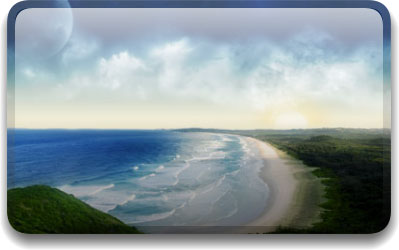
Use this mambot to give some extra eye-candy to your images. It is very simple to use and uses unobtrusive javascript. Many advanced options are included.

You don't need Photoshop or any other advanced and expensive programs to make a beautiful Web 2.0 gloss. Use mfGlossy and you're ready to go. Additionally, the original image will be kept intact.

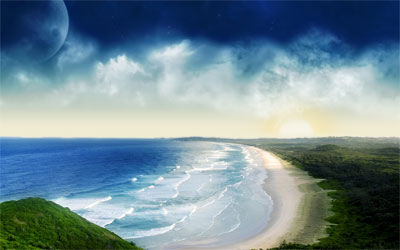
Original

Original Image

Basic setup

Basic setup
{mfglossy beach.jpg}

Advanced configuration
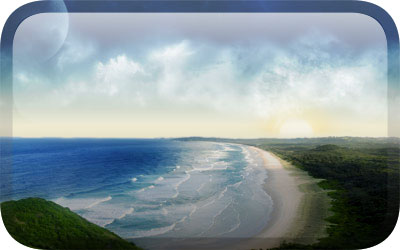
Advanced configuration
{mfglossy beach.jpg|Beautiful beach||40|noshadow}

Install

  1. Log in to your back-end of the site
  2. Go to "Installers", "Mambots"
  3. Click on "Browse" and navigate to the downloaded ZIP archive
  4. Press "Upload File & Install"
  5. Go to "Mambots", "Site Mambots"
  6. Search for mfGlossy and publish it
  7. Download glossy.js
  8. UnZIP the archive and only get glossy.js. Upload it to the following folder on your FTP:

    /mambots/content/mfglossy

    Don't forget to read the license of glossy.js.

How to use

Syntax

Use the following syntax to enable mfGlossy on your images:
{mfglossy imgpath/img_name}

The base image path is always: images/stories. For example, if you have an image in your images/stories folder, your syntax will be: {mfglossy img_name}

If you have an image in your images/stories/subfolder folder, your syntax will be: {mfglossy subfolder/img_name}

When the user hasn't enabled JavaScript or the browser doesn't support this script, a non-formatted image will be displayed.

Advanced Configuration

mfGlossy has a couple of parameters you can set. Seperate the parameters with the | symbol.

  1. The image location and name. This one has to be used, or else the script will not work.
    Example: {mfglossy imgpath/img_name}
  2. ALT attribute for the image, making it W3C valid. If left empty, no ALT attribute will be used.
    Example: {mfglossy imgpath/img_name|Logo}
  3. Float the image to the left or to the right.
    Example: {mfglossy imgpath/img_name|Logo|right}
  4. Radius of the gloss in pixels. Minimal use is 20, maximum is 50. Default is 25.
    Example: {mfglossy imgpath/img_name|Logo|right|40}
  5. Noshadow removes the shadow from the glossy image. Default is false.
    Example: {mfglossy imgpath/img_name|Logo|right|40|noshadow}

Now I would have a glossy image with an ALT attribute called "Logo", floating on the right with a glossy radius of 40 and no shadow.

Only the first parameter must be filled. All others are optional. If you don't want to use the parameter, leave it empty. For example, if you want all default settings, but not a shadow, use the following syntax:
{mfglossy imgpath/img_name||||noshadow}

Download

Attribution-Share Alike 3.0

Don't forget to download mfSyntaxHelper if you need some help with the difficult syntax from this mambot.

The sample image is from socwall.

Feel free to give feedback about this mambot. Enjoy using it!

Changelog

Version 1.1
  • Removed script from Christian Effenberger due to copyright restrictions. You can still download the script at his website.
  • Added a couple empty "index.html" files for no directory listing.
  • Default settings can be placed. Go to the mambot and set your own default settings.
Known bugs
  • Script doesn't work when Joomla! is installed in a subdirectory.
Version 1.2
  • Bugfix: Now works when installed in subdirectory
  • Bugfix: Altered code to remove the "Stack Overflow" error from IE7

Tags:  mambot free joomla webdesign

Interested in this topic? You might enjoy another article I've written called

Comments
Add NewSearchRSS
Jimmy - Great Effects... J!1.5 soon?   2008-02-11 22:08:56
Gravatar image I love all these effects! I'm using them on my last pre-J!1.5 site, but would love to use them on my 1.5 sites. Any updates for compatability soon?
Marco - Don't know   2008-02-11 22:43:19
Gravatar image Thanks for the compliment.

Don't know if it's coming to Joomla! 1.5 soon, since I don't have much experience with the CMS yet.

Please stay tuned! Enjoy the script.

Greetings,
Marco
WC Leung - Ask us if you need help...   2008-02-13 16:07:36
Gravatar image Anyway, if you're going to have the next version and need help on Joomla! 1.5, just ask any of us. I can give you some sample if you want.
Eddie - difficult   2008-02-20 00:18:30
Gravatar image hi im having a lot of trouble trying to get this one to work and also the mfCorners, and im pretty sure joomla is on root too, i found someone else with the same problem, its all installed correctly as far as i can see, i really have no idea why they both arnt working i have other mf things like zoom one working perfectly. just these two aint doin it, could there be another setting interfering with mgcorners and mfglossy?

Any suggestions would be appreciated, again its all set up as required. AFAIK.
Jean Claude - J 1.5 needed a lot   2008-07-26 17:09:38
Gravatar image Hi Marco

Wonderful job with mfglossy, we use this a lot for our website.
We are in the process of moving to 1.5, could you port this to 1.5, it should not be too difficult to code B)

We really need it
Thanks in advance
Read more...
Name:
Email:
  Gravatar enabled.
Website:
Title:
UBBCode:
[b] [i] [u] [url] [quote] [code] [img] 
 
 
:angry::0:confused::cheer:B):evil::silly::dry::lol::kiss::D:pinch:
:(:shock::X:side::):P:unsure::woohoo::huh::whistle:;):s
:!::?::idea::arrow:
 
Unsubscribe from e-mail notifications.
 
< Prev   Next >
Subscribe

If 2154 people are reading this site every day, why don't you?